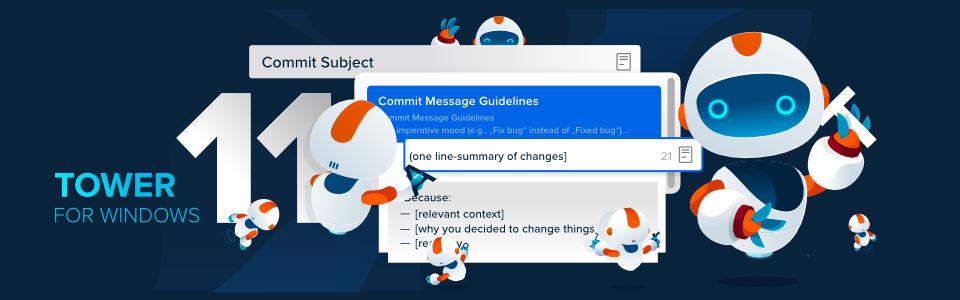
We are thrilled to announce the release of Tower 11 for Windows! This version introduces a feature that many of you have been waiting for: Commit Templates!
Get ready to craft better commits and bring more consistency to your project's history! 😎
Clear and descriptive commit messages are the backbone of a healthy Git repository. They make it easier to understand changes, review code, and track down bugs. But maintaining a high standard for commit messages across a whole team and over the long run is a tough challenge.
That's where Git's "Commit Templates" come to the rescue! And with Tower 11 for Windows, using them is now incredibly simple.
Let's dive in and see how you can start using this feature today.
Your Command Center for Commit Templates
You can manage all your commit templates in Tower's Preferences, under the new "Templates" tab. We've included a default template to get you started, but the real power comes from creating your own.

To create a new template, just click the "+" button and fill in the details. If you're not sure what to include in your commit template, this blog post can teach you all the fundamentals on how to write a compelling commit message.

You can set a global default template that will be used for all your repositories. Or, for more fine-grained control, you can define a specific template for a particular repository in its settings.

Inserting a Template When Committing
When you're ready to commit, you'll find a new "Commit template" button in the commit composer. Clicking it will reveal all your saved templates.

For the keyboard ninjas out there, we've got you covered too! Simply type "t:" or "/" in the commit subject field to bring up the template list and select the one you need without ever leaving the keyboard.

ARM-Native Version for Windows
We are also excited to announce that, starting with this release, Tower for Windows will be available as an ARM-native application!

If you are using a Windows device with an ARM processor, you can now enjoy a faster and more energy-efficient experience. This native ARM version ensures that Tower runs with the best possible performance on these devices.
The best part? If you're using a device with an ARM processor, you will automatically receive the ARM-native version when you update to version 11. There's no need to switch manually!
Other Improvements
As usual, we took some time to implement improvements across the board. Here's what's new:
- Branch Naming: Spaces in branch names are now automatically replaced with dashes for improved consistency.
- Bookmarks: The default path when adding a new repository is now synchronized with the default clone path defined in Preferences.
- Licensing: Evaluation of license expiration dates has been improved.
- GPG Configuration: Improved GPG configuration handling by providing system environment variables for the GPG config binary.
- Portable Git: Updated to version 2.52.0 for improved compatibility and performance. Please note that
git-flowwas removed in version 2.51.2. To maintain compatibility, do not remove previous versions of Embedded Git and select version 2.51.0 in Preferences → Git Config → Git Binary.
We also fixed some bugs! Here is what we addressed:
- Preferences: Fixed a crash that could occur when switching the SSH implementation to OpenSSH.
- GPG: Fixed an issue with retrieving the GPG binary version.
- Commit: Fixed string encoding issues when committing changes.
- Working Tree: Addressed a potential crash when refreshing the working tree.
- Rebase: Fixed an issue where running an interactive rebase could result in intermittent errors.
- Remote Branches: Fixed parsing issues with remote branch names.
We can't wait for you to try Tower 11 for Windows! If you already have a Tower account, update to version 11 today!
Happy committing! 😊
Not a Tower user yet? Download our 30-day free trial and experience a better way to work with Git!
PS: Did you know? Tower Pro is now free for students as well as teachers and educational institutions!
