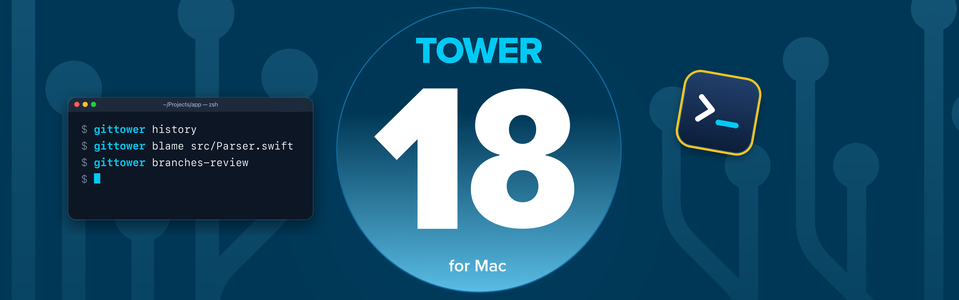
Tower 18 for Mac is here! This update is all about improving the Tower experience in the terminal: the Tower Command Line Tool can now take you straight to any view in Tower (History, Blame, the Working Copy, Branches Review, and more) with a single command 😎
We are well aware that Tower is, first and foremost, a visual tool. Many of you chose Tower precisely because you'd rather not spend your day typing Git commands — and that's not changing anytime soon!
But something has changed: thanks to AI coding agents like Claude Code and Codex, even the most devoted GUI fans are now spending more and more time in the terminal. You kick off a task, the agent does its thing... and then you want to actually see what happened.
That's where Tower shines, so we felt the path from the terminal to Tower deserved a serious upgrade. With Tower 18, the Tower Command Line Tool (gittower) is no longer just a way to open a repository — it takes you to exactly the place you want to look at.
The idea is simple: stay in the terminal until the moment you want to look at something, and a single command takes you there. You don't even have to type it yourself! Install our Agent Skill and simply ask your AI agent to "show me this in Tower" 😉
Let's dive in! If you prefer, you can get up to speed by watching our video tour below 😎
📄 Prefer to have everything on a single page? Every command listed below is also covered, in a more visual way, in our new Tower CLI cheat sheet, available in both light and dark modes!
Getting Started
After updating to Tower 18, head over to Tower's Settings → Integration tab and look for the "Tower Command Line Tool" row. If you see an Update button, click it and enter your admin password.

Never installed the command line tool before? You will see an Install button instead — the steps are exactly the same.
Next, open your terminal and run:
gittower --versionThe output should match Tower's version and build number exactly — for example, 18.0 (561).

And here's the good news: this is the last time you'll need to do this 😁
Previously, Tower copied the command line tool into /usr/local/bin, which meant that every Tower update left you with an outdated copy (and a notification asking you to reinstall it).
Tower now installs a link that always points to the Tower app itself, so the command line tool is updated automatically every time Tower is.
☝️ If you ever move or rename Tower, the link will break — but don't worry! Settings will offer a Repair button to fix it with a single click.
What You Can Now Do in the Terminal
Before we start, one important note: gittower is a launcher, not a Git client. It never commits, pushes, or changes your files — every command either opens a repository in Tower or opens it at a particular view.
Open Any Repository
The classic! Type this from anywhere inside your project — even from a subfolder, as Tower will find the repository root for you:
gittower .You can also open a repository located elsewhere, or simply name a file to open the repository it belongs to:
gittower ~/Projects/my-app
gittower src/Parser.swift
☝️ Want it in a new window or tab? Add -n (or --new-window) or --new-tab. These flags work with every command below, too.
Jump to History and Specific Commits
Open the History view — for the whole repository, a branch, a tag, or a single file:
gittower history
gittower history feature/login
gittower history v1.1
gittower history src/Parser.swift
You can even use Git's own <revision>:<file> notation to see a file's history as of an older revision:
gittower history v1.0:src/Parser.swiftSpotted an interesting commit while reading git log? Paste its hash and Tower will open History with that commit already selected. Full hashes, HEAD~3, tags — any revision Git understands will do.
gittower commit 9f8a4b4Blame, Now and Then
Want to know who wrote a particular line? Instead of switching to Tower, finding the repository, finding the file, and opening Blame, just type:
gittower blame src/Parser.swiftTower comes forward with that file's blame already open. And, just like with History, you can travel back in time:
gittower blame v1.0:src/Parser.swiftSame file, two points in its life, one command apart!
Review Your Working Copy and Stashes
This is the one we expect you'll use the most. Your AI agent has just finished its work, and you'd like to review the changes in a proper diff view before committing? That's one command away:
gittower working-copyIf your fingers are used to typing git status, gittower status works too.
And your stashes are just as easy to reach:
gittower stashesBranches Review, Pre-Filtered
The "Branches Review" view can be opened with filters, sorting, and search already applied. For example, to see only stale branches, or only those that won't merge cleanly:
gittower branches-review --filter stale
gittower branches-review --filter conflictsYou can also compare a specific branch against another, sort by recent activity, or prefill the search field:
gittower branches-review --branch feature/login --base main
gittower branches-review --sort last-updated --desc
gittower branches-review --search feature
Pull Requests, Settings, and Cloning
A few more handy shortcuts:
gittower pull-requests
gittower settings
gittower clone https://github.com/user/repo.git
The first opens the Pull Requests view (gittower prs also works), the second opens the repository's settings, and the third opens Tower's clone dialog with the URL already filled in.
Branch Parents and Stacked Branches
This is the only command that doesn't open Tower: gittower branch reads and writes Tower's branch information directly from the terminal.
Recording a branch's parent is especially handy when you work with AI agents. Created a branch for your agent to work on? Tell Tower where it came from (or simply ask your agent to do it for you):
gittower branch parent feature/demo-updates --set mainTower will then show the branch's Fork Point in the History view: the commits your agent added sit right above it, while everything that came before is grayed out. No more guessing which commits are new! 😎
And if you are a fan of Stacked Branches, you can also read a branch's parent and stacking status, or stack it on its parent:
gittower branch parent feature/login
gittower branch stacked feature/login
gittower branch stacked feature/login --set
These values live in your repository's Git config, so Tower and the terminal always agree.
A Proper Command Line Citizen
We also put a lot of care into making gittower behave like a real Unix tool:
- Typos are recognized: type
gittower histroyand it will ask if you meanthistory. - It doesn't guess: if you have a branch and a file named
release-notes,gittowerwill tell you and suggest how to be specific (./release-notesfor the file,refs/heads/release-notesfor the branch). Git's--separator works too. - Point it anywhere: every view command accepts
-C <path>, just like Git, so you can target a repository without leaving your current folder. - Meaningful exit codes:
gittowerfollows standard Unix exit codes, so it behaves predictably in your scripts — and when an AI agent runs it for you.
To see everything it can do, run gittower --help, or gittower help <command> for the details on a specific command.
Teach Your AI Agent About gittower
Your AI agent doesn't know that gittower exists — yet! So we've put together an Agent Skill: a small Markdown file that tells your agent what the Tower Command Line Tool can do, and when it makes sense to use it.
Once it's installed, you can simply ask your agent to "show me the history of this file in Tower" or "open Branches Review with only the stale branches". Even better: when the agent finishes a task, it will offer to open the Working Copy in Tower, so you can review its changes in a proper diff view before anything gets committed 😎
To install it in Claude Code, save the file as ~/.claude/skills/tower-cli/SKILL.md — or let your terminal do it for you:
mkdir -p ~/.claude/skills/tower-cli && curl -fsSL https://www.git-tower.com/blog/assets/downloads/tower-cli/SKILL.md -o ~/.claude/skills/tower-cli/SKILL.mdThe skill follows the open Agent Skills format, so it also works with other agents that support it, like Codex. Just place it in that agent's skills folder instead.
Other Improvements and Bug Fixes
As usual, we also took some time to implement improvements across the board:
- Command Line Tool: Tower no longer replaces a
gittowercommand installed by another program (and asks before replacing a link you created yourself). The Integration settings also offer to update a tool left behind by an older Tower version, or repair one that broke because Tower was moved or renamed. Plus, cancelling the password prompt during installation no longer reports it as successful. Lastly, opening a repository while Tower is in full screen on another Space now uses that window instead of opening a separate one, and--new-tabadds it as a tab there. - Blame: Blame and the raw file view now follow
HEADwhen opened for a file, showing its state on the current branch instead of pinning it to a single commit. Blame also reports a failed load instead of showing an empty file.
We also fixed a couple of bugs! Here is what we addressed:
- Raw File View: Fixed the raw file view showing a file at an outdated revision after the file changed.
- New Window: Opening a repository in a new window no longer adds it as a tab to the existing window when macOS is set to prefer tabs.
We hope you enjoy this release! Happy committing! 😊
Not a Tower user yet? Download our 30-day free trial and experience a better way to work with Git!
PS: Did you know? Tower Pro is now free for students as well as teachers and educational institutions!
