Say goodbye to writing commit messages from scratch! Tower 16 for Windows is currently in Beta, and it brings AI Commits to Windows, allowing you to generate commit messages and descriptions with the help of AI directly from your favorite Git client ✨
And that's not all: the Blame view has been redesigned, too!
AI Commits made its debut on the Mac in Tower 16 for Mac, and it quickly became one of our users' most loved features. Writing commit messages takes you out of your flow, so we're thrilled to finally bring it to Windows!
If you have already used AI Commits on the Mac, you will feel right at home: it works exactly the same way. Stage your changes, click a button, and Tower writes the commit message and description for you, using the AI agent you already work with: Claude Code, OpenAI's Codex, or Google's Gemini.
☝️ Tower 16 for Windows is currently in Beta. To try it out, simply change the Release Channel to "Beta" under Preferences > Updates in the Tower for Windows application.
AI Commits is available with all plans. Let's see how it works!
Before You Start: Install Claude Code, Codex, or Gemini
AI Commits uses the command-line version of Claude Code, Codex, or Gemini, so you will need to have one of them installed. There's no API key to add: the agent simply uses the account you log in with.
On Windows, install them from Tower's terminal. Open a repository in Tower, choose "File > Open in Terminal", and run the installation command there:
For Claude Code:
npm install -g @anthropic-ai/claude-codeFor Codex:
npm install -g @openai/codexFor Gemini:
npm install -g @google/gemini-cliOnce it's installed, run claude (or codex, or gemini) in the same terminal and follow the prompts to log in to your account. That's it! Tower detects newly installed agents automatically, even while it's running, so there's no need to restart it.
💡 Prefer a different installation method? The Claude Code, Codex, and Gemini CLI docs list all the options. Whichever you choose, run it from Tower's terminal.
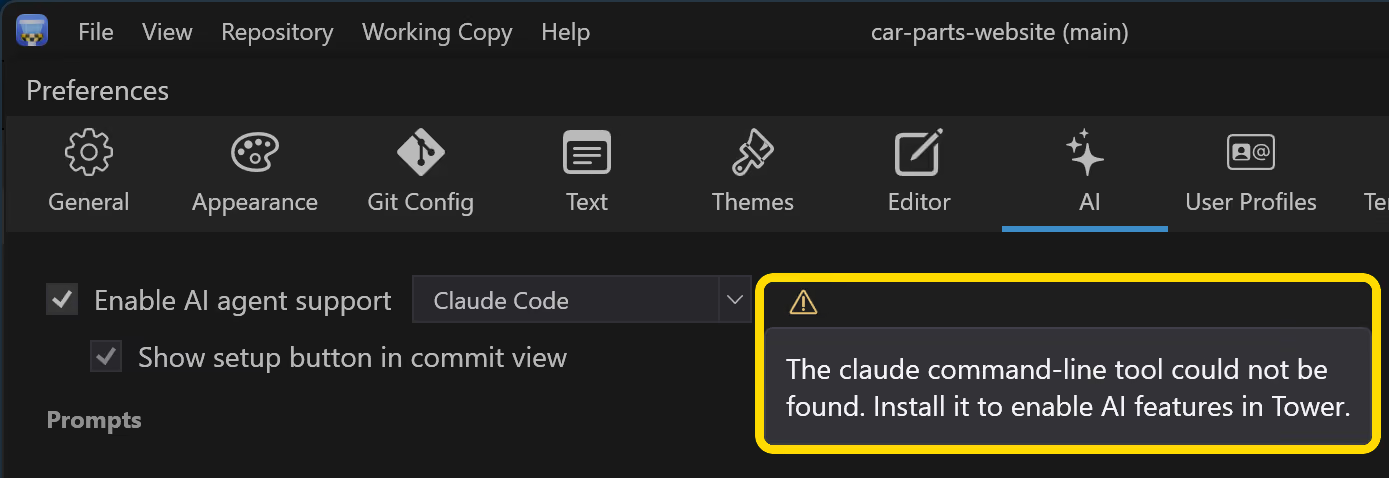
If Tower can't find the CLI of the provider you have selected, a warning icon will let you know in Tower's "Preferences" → "AI" tab.
AI Commits in Action!
You will easily spot a colorful, brand new "✨ Generate" button in the Commit Composing area. Simply stage your changes, click the button, and Tower will instantly generate a commit message and description for you — it's that simple!
You will also find a dropdown next to it that allows you to pick from a selection of preset prompts.
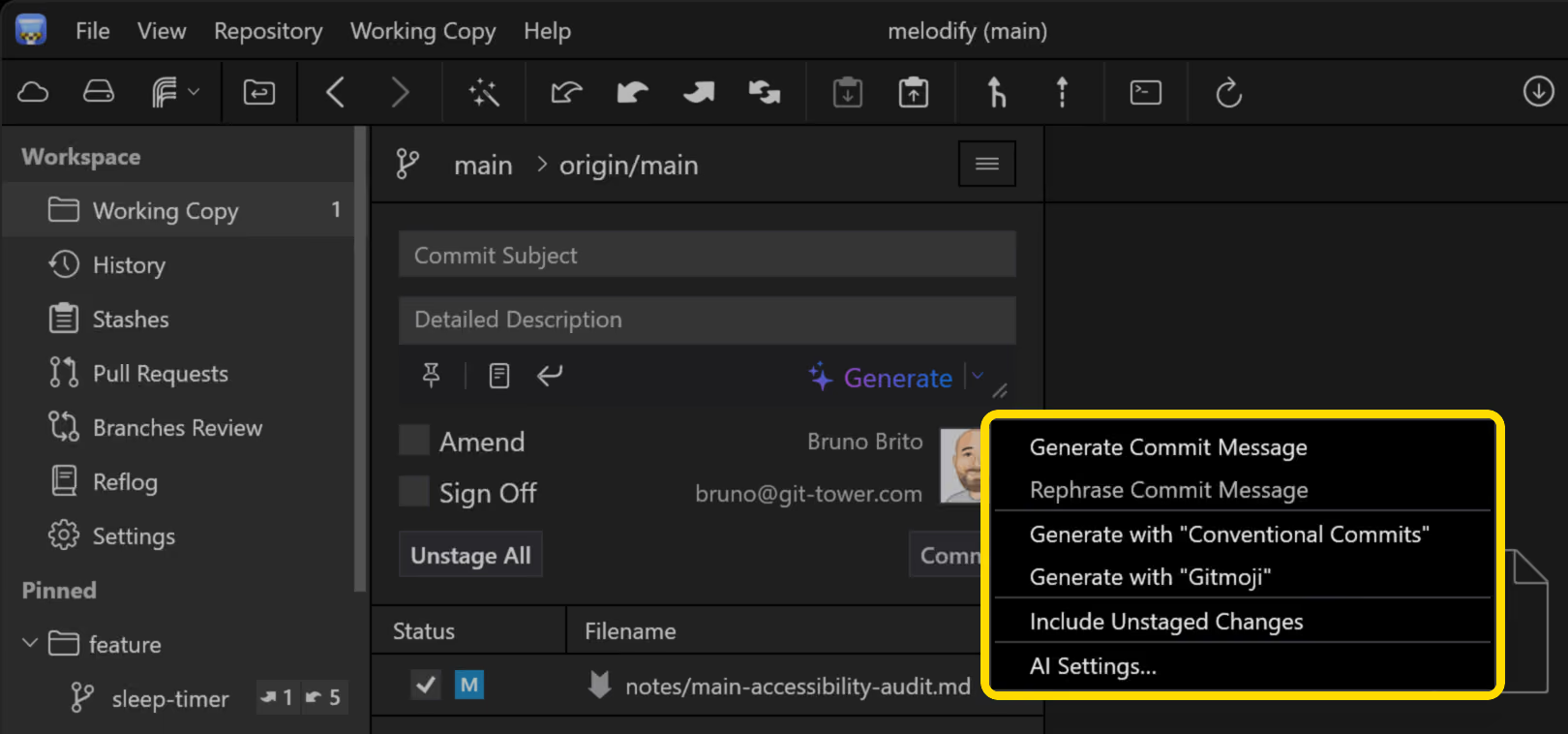
This makes it easy to switch between different styles of commit messages depending on the situation — for example, a short one-liner versus a detailed, thorough commit.
The same menu also lets you rephrase the commit message you have already written, include your unstaged changes in what the AI looks at, and jump straight to the AI settings.
New "AI" Tab in the Preferences
To configure AI Commits, head over to Tower's "Preferences" panel where you will find a brand new "AI" tab.
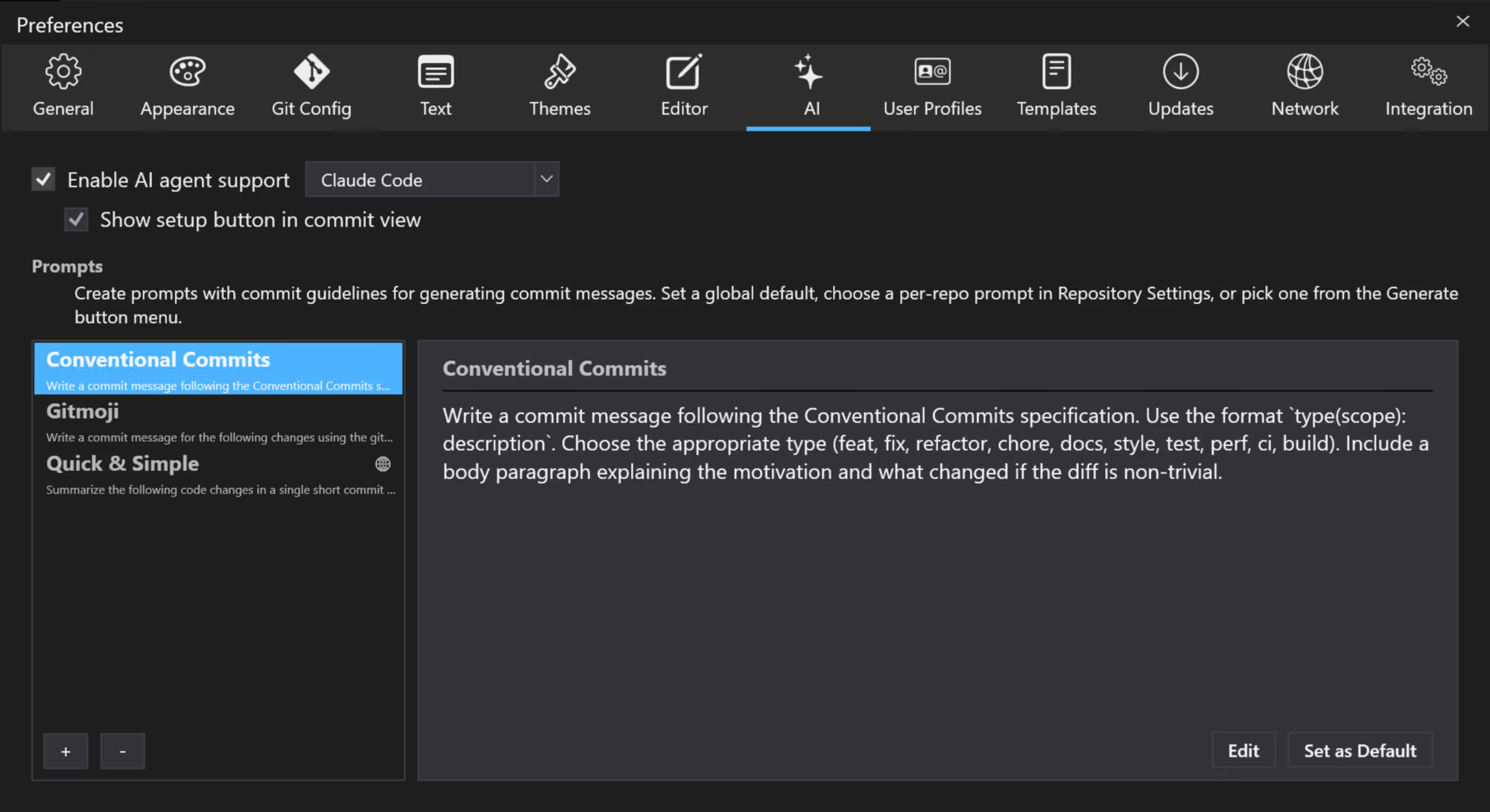
Here you can:
- Turn AI agent support on or off, and select the AI provider for generating commit messages: Claude Code, OpenAI's Codex, or Google's Gemini.
- Choose whether the commit view shows its AI setup button.
- Add or delete custom prompt presets to fine-tune the output to your liking.
That's right; you can create your own custom prompts to ensure that every generated message follows your preferred format and style. This is especially useful for teams that follow specific commit conventions (like Conventional Commits), or those who require certain prefixes, scopes, or formatting rules (like the usage of Gitmoji!).
Click the "+" button below the list of prompts, give your prompt a title, and write your instructions. Tick "Is Global Default" to use it in all your repositories.
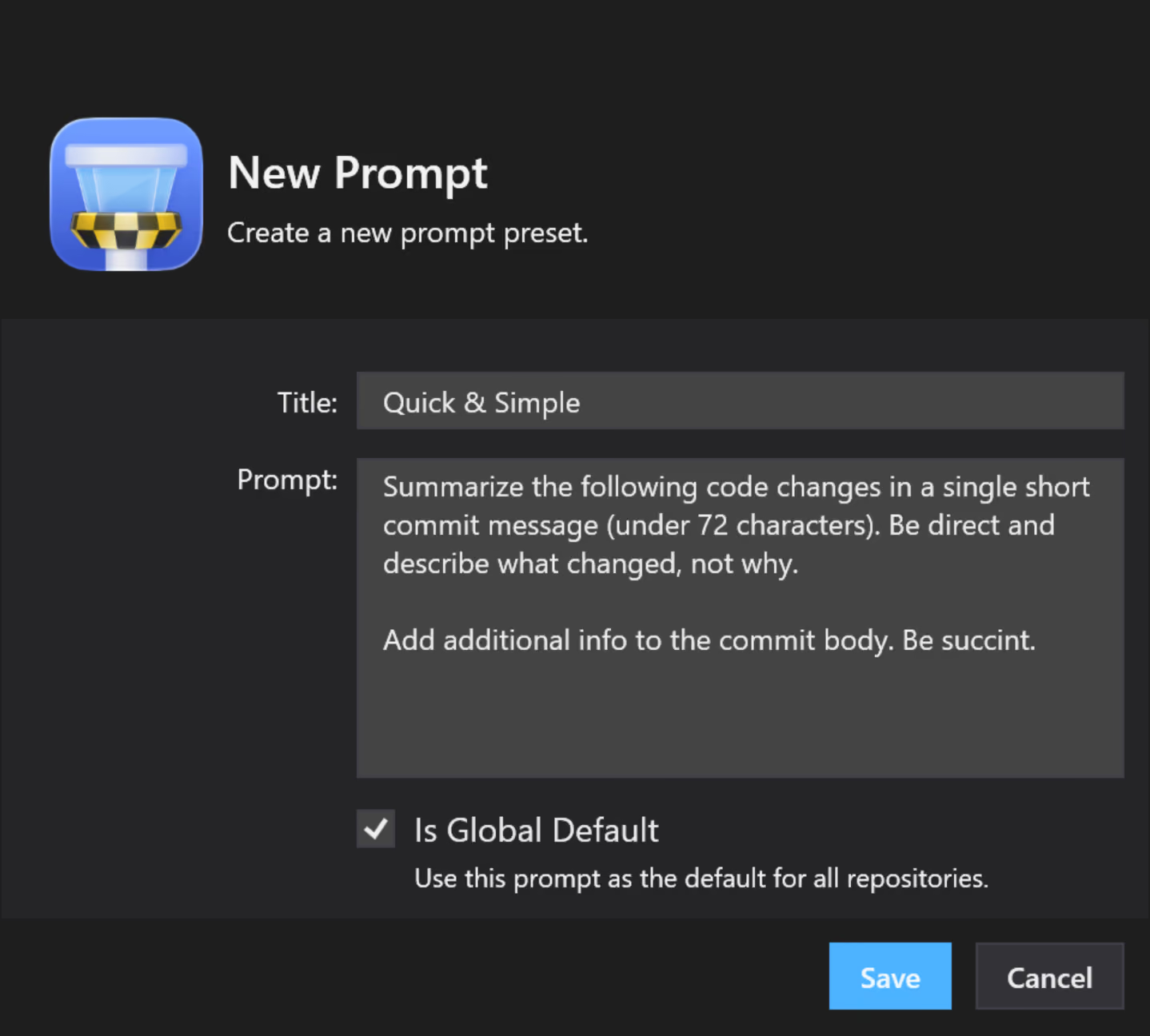
Need a different style for a specific project? You can choose a prompt per repository in its Repository Settings, or simply pick one from the "Generate" button's menu whenever you need it.
💡 Looking for a convention to follow? Our free Git Commit Templates Library has ready-made templates for Conventional Commits, Gitmoji, and more, each with setup instructions for Tower and a matching skill for your coding agent.
A Redesigned Blame View
AI Commits isn't the only highlight of this release: the Blame view has been redesigned, too — and if you also use Tower on the Mac, it will look very familiar!
Blame answers one of the most common questions in any project: "Who changed this line, when, and why?" To open it, right-click a file in the Working Copy view and choose "Blame".
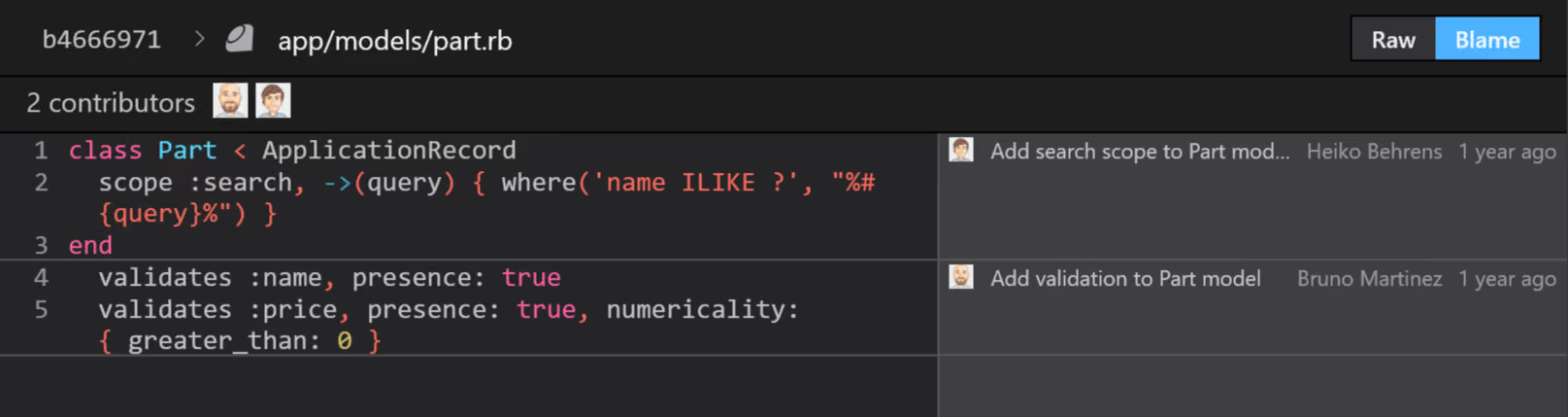
Blame no longer opens in a separate window: it now lives right inside the repository window, just like History or the Working Copy. Here's what you will find:
- Every change tells its story at a glance: next to your code, with its line numbers, each change gets one annotation showing the author's avatar, the commit's subject, its author, and how long ago it was made.
- All contributors in one row: the file's contributors are listed with their avatars in the header, so you can see right away who has worked on it.
- Jump to another revision or file: the header shows the commit and the path of the file you're looking at, and lets you switch to another revision or file without leaving Blame.
- Raw and Blame, one click apart: switch between the plain file and its Blame annotations with the toggle in the top right corner.
Of course, syntax highlighting (introduced in Tower 15 for Windows) is supported here as well, in both light and dark mode.
"Show Blame" is also available in more places now: select several commits in the History, and you can open Blame from their combined diff, too.
Improvements and Bug Fixes
As is tradition, this release also includes some improvements under the hood:
- History: The commit history loads much faster, especially in repositories with signed commits: Tower now checks signatures only for the commits on screen. And after you import or trust a GPG key, commit signatures update without a restart.
- Diff View: With "Show invisible characters" on, a tab is now drawn as an arrow across its full width, so you can tell it apart from spaces.
- Working Copy: The commit templates button now sits in the bar under the commit message. Tower also remembers a pinned commit body after a restart, and the pin applies to all open repositories.
We also squashed quite a few bugs! Here is what we fixed:
- General: Fixed a crash that could occur when quitting Tower.
- History: Fixed the commit list not loading when the Git setting
log.showSignaturewas enabled, and the commit history stopping early when a page failed to load. - Diff View: Page Up and Page Down now scroll the whole diff instead of moving the cursor inside a single chunk.
- Bitbucket: Remotes on Bitbucket's new SSH hosts,
ssh.bitbucket.organdaltssh.bitbucket.org, are now linked to your Bitbucket account and its Pull Requests. Bitbucket Cloud Pull Requests now show the author's name instead of an empty "by", and you can now edit and delete your own Pull Request comments and reply to any comment. Edit and Delete show only on comments you wrote, and they use the account you wrote them with. - Services: Fixed sign-in errors that could occur when browser sign-ins overlapped, were cancelled, or returned the result of an earlier attempt. Tower also recognizes GitHub, Azure DevOps, and other service remotes correctly when Windows is set to Turkish.
- Azure DevOps Server: Fixed the collection name sometimes being added twice to the server address.
- Preferences: Disabled options in drop-down menus and checkboxes now look disabled.
We hope you enjoy this release! Happy committing! 😊
Not a Tower user yet? Download our 30-day free trial and experience a better way to work with Git!
PS: Did you know? Students get 6 months of Tower Pro for free, and accredited universities get free multi-seat licenses!