Detailed Change Template
A structured body with three short sections: what changed, why it changed, and how you verified it. It gives reviewers and future maintainers the context that the diff alone can't provide.
- The change touches several parts of the codebase.
- Reviewers need context to understand the decision.
- You want a record of how the change was tested.
Template
Replace each <placeholder> by hand when you write a commit.
Lines starting with # are guidance that Git removes in its default cleanup mode.
Completed example
Moving slow work out of a web request.
Move invoice PDF generation to a background job

What changed:
- Generate invoice PDFs in a queued job instead of during checkout
- Email the invoice once the job completes
- Show an "Invoice on its way" notice on the receipt page

Why:
Rendering large invoices blocked the checkout request for several
seconds and occasionally hit the 30-second gateway timeout.

How it was verified:
- Added job tests for the success path and for renderer retries
- Checked out on staging with a 40-line invoice; the PDF arrived
  by email within a minute
Guidance
Rules
- Keep the subject short and in imperative mood; the sections carry the detail.
- List concrete changes under "What changed", not file names.
- Explain the problem or goal under "Why", including constraints that shaped the solution.
- Record only checks you actually performed under "How it was verified".
Optional fields
- How it was verified
- Omit only when there was genuinely nothing to verify, such as a comment fix.
Common mistakes
- Repeating the diff line by line under "What changed".
- Writing "Tested" without saying how.
- Keeping empty sections with placeholder text.
How it relates to other templates
For defects, the Bug Fix template splits "Why" into problem and cause. If your team uses Conventional Commits, keep the type(scope): description subject and use these sections as the body.
Use this template
Use in Tower
Tower for Mac
- Open Tower's Settings and select the Templates tab.
- Create a new template and enter the subject and body below. You can also download the template file and import it from the same tab. After importing, remove the lines that start with
#. They're guidance for Git's editor. - To use it by default, set it as the global Git value in the Templates tab, or pick it as the default commit template in a repository's settings.
- When you write a commit, click the Commit template button below the description field, or type t: or / in the subject field to choose a template.
More details: Commit Templates in the Tower for Mac documentation.
Tower for Windows
- Open Tower's Preferences and select the Templates tab.
- Click + to create a new template and enter the subject and body below.
- To use it by default, set it as the global default template, or pick it as the default in a repository's settings.
- When you write a commit, click the Commit template button in the commit composer, or type t: or / in the subject field to choose a template.
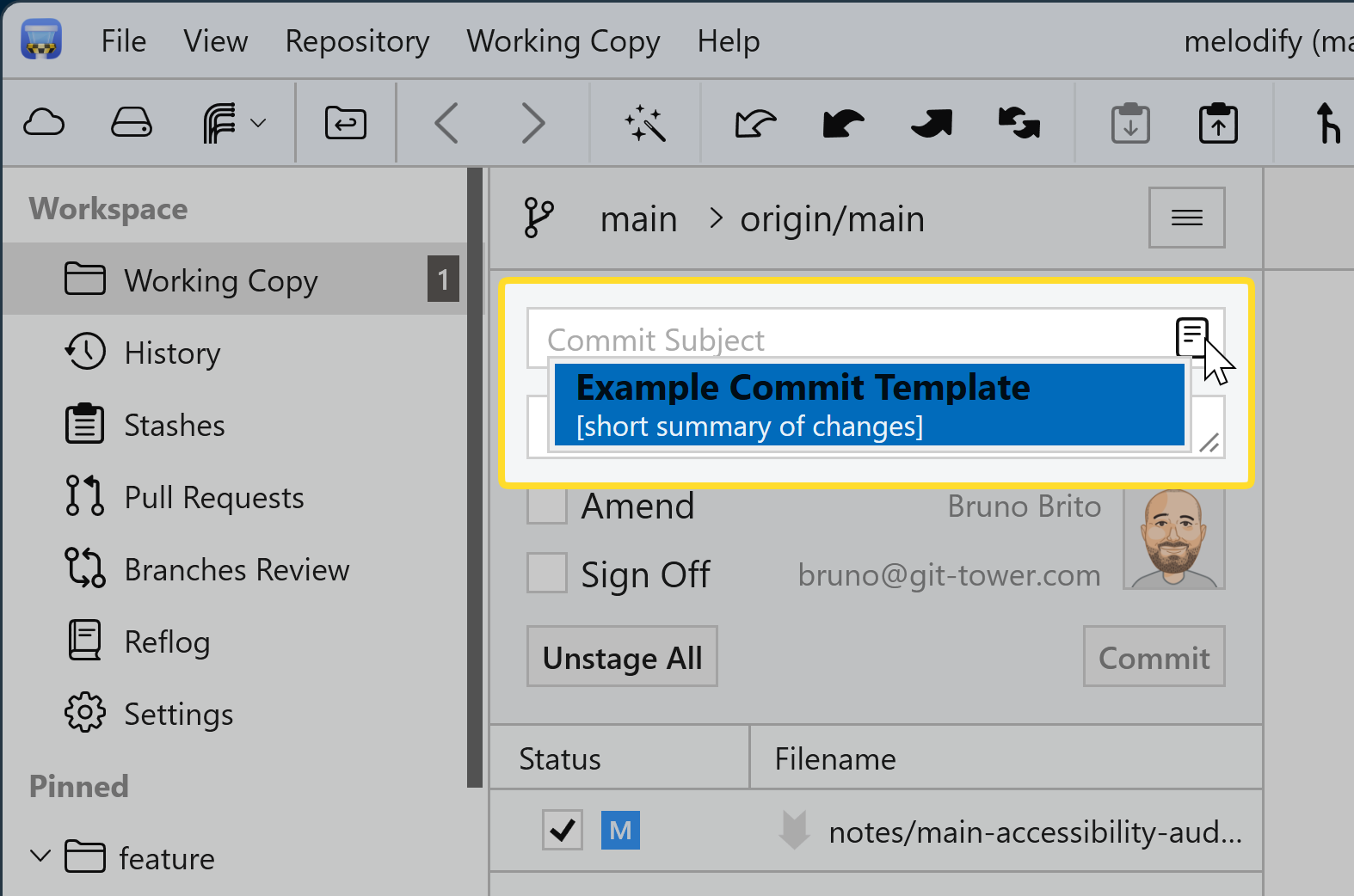
More details: Commit Templates in Tower for Windows.
Template fields for Tower
The library version with Git's # comment lines removed. If you edited the template above, copy your version from the editor instead.
Subject
<Summarize the change in imperative mood>Body
What changed:
- <Describe each notable change>

Why:
<Explain the problem or goal behind the change>

How it was verified:
- <Tests run, manual checks, or review steps>Use with the Git command line
Download gitmessage-detailed-change.txt
The commands below assume the file is in your Downloads folder.
macOS and Linux (Terminal)
Try it once
Run this in a repository with staged changes. Git opens your editor with the template filled in:
git commit --template ~/Downloads/gitmessage-detailed-change.txtMake it the default for one repository
From the repository's root folder, save the file as .gitmessage and point Git to it:
mv ~/Downloads/gitmessage-detailed-change.txt .gitmessage
git config commit.template .gitmessageMake it your global default
Save the file in your home folder and use it for every repository without its own setting:
mv ~/Downloads/gitmessage-detailed-change.txt ~/.gitmessage
git config --global commit.template "~/.gitmessage"Windows (PowerShell)
Try it once
Run this in a repository with staged changes. Git opens your editor with the template filled in:
git commit --template "$HOME\Downloads\gitmessage-detailed-change.txt"Make it the default for one repository
From the repository's root folder, save the file as .gitmessage and point Git to it:
Move-Item "$HOME\Downloads\gitmessage-detailed-change.txt" .gitmessage
git config commit.template .gitmessageMake it your global default
Save the file in your home folder and use it for every repository without its own setting:
Move-Item "$HOME\Downloads\gitmessage-detailed-change.txt" "$HOME\.gitmessage"
git config --global commit.template "~/.gitmessage"Share it with your team
Commit .gitmessage to the repository so everyone has the same file. Sharing the file does not configure anyone's Git: Git never applies settings from a repository automatically, so each teammate runs this once in their clone:
git config commit.template .gitmessageInspect, change, or remove the default
# Show the configured template and where it's set
git config --show-origin --get commit.template

# Point to a different file
git config commit.template path/to/other-template.txt

# Remove the repository or global setting
git config --unset commit.template
git config --global --unset commit.template- Templates guide, hooks enforce. A template only pre-fills the editor. To reject messages that don't follow a convention, add a commit-msg hook.
- Only the editor uses templates.
git commit -mandgit commit -Fbypass the template. - Unchanged templates abort the commit. If you save without editing the template, Git stops with "you did not edit the message".
- Comment removal depends on cleanup. Git strips
#lines under its defaultstripcleanup mode. With--cleanup=verbatim,--cleanup=whitespace, or a matchingcommit.cleanupsetting, they stay in the message. If you changedcore.commentChar,#lines aren't treated as comments. - Other commands write their own messages.
git revertandgit mergedon't loadcommit.template.
Setting up Git from scratch? The Git Config Generator builds a complete .gitconfig for you. See the git commit documentation for all options.
Use with coding agents
This skill teaches your coding agent to draft commit messages in the Detailed Change format. It uses the library version of the template. Edits you make in the editor above aren't included.
- Follows your repository's instructions and your explicit requests first.
- Reads the staged changes and keeps unstaged work out of the message.
- Never invents motivation, issue numbers, benchmarks, or test results. It leaves placeholders and asks instead.
- Flags breaking changes and unrelated changes that should be split.
- Drafts only. It won't stage, commit, or push unless you ask it to.
Download skill commit-message-detailed-change-v1.0.0.zip · Agent Skills format · MIT-0 license
Contains commit-message-detailed-change/SKILL.md with the instructions, references/REFERENCE.md with the rules and a completed example, and assets/template.txt.
Install in Claude Code
- Unzip the download. It contains a single folder named after the skill.
- Move that folder to
.claude/skills/in your repository to share it with your team, or to~/.claude/skills/to use it in all your projects. - Start a new Claude Code session and ask it to draft a commit message. You can also invoke the skill directly with
/commit-message-detailed-change.
See the Claude Code skills documentation for details.
Other agents
The package uses the open Agent Skills format, but we've only tested the agents listed above. For any other agent, check its documentation for skill support, or add the instructions below to its configuration file, such as AGENTS.md.
Copy the instructions
Add these instructions to your agent's configuration or your repository's AGENTS.md:
## Commit messages

Use the Detailed Change structure below.

```text
<Summarize the change in imperative mood>

What changed:
- <Describe each notable change>

Why:
<Explain the problem or goal behind the change>

How it was verified:
- <Tests run, manual checks, or review steps>
```

Rules:
- Keep the subject short and in imperative mood; the sections carry the detail.
- List concrete changes under "What changed", not file names.
- Explain the problem or goal under "Why", including constraints that shaped the solution.
- Record only checks you actually performed under "How it was verified".
- Build "What changed" from the staged diff, describing effects rather than files.
- Only fill "Why" with reasons stated by the user, in code comments, in linked issues you were given, or otherwise evident from the change. If the reason is unknown, leave a placeholder and say so.
- Only list verification steps that were actually run in this session or reported by the user. Never claim tests passed without evidence.

When writing a commit message:
- Base it on the staged changes (`git diff --staged`). Don't describe unstaged work as part of the commit.
- If the staged changes are unrelated to each other, suggest splitting the commit.
- Never invent motivation, issue identifiers, benchmark numbers, or test results. Keep a `<placeholder>` and ask instead.
- Call out breaking changes and include migration information supported by the changes.
- Draft the message for review. Don't stage, commit, or push unless explicitly asked.