Solving Merge Conflicts
During merge & rebase operations, conflicts can occur. Although Git is very good at solving most issues by itself there are cases when you have to take action. An example situation is when the same line in the same file was edited in both branches - then you need to tell Git how to solve this issue.
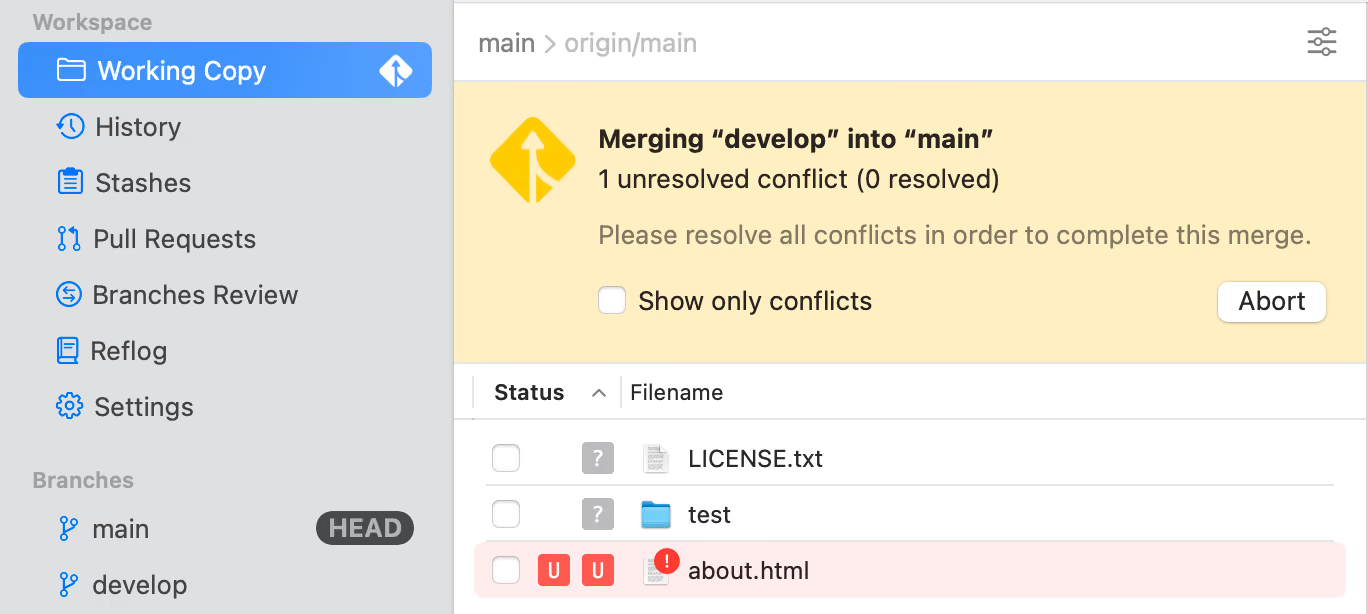
Tower will inform you if you currently have a conflict that needs your attention by showing a small warning sign icon next to the Working Copy item in the sidebar.
Also, the commit area in the Working Copy view is replaced with information about the current status.
To continue working, you must solve the conflicts in all concerned files. Note that when rebasing, multiple merge conflicts can occur in sequence.
You can always abort the merge (or rebase) by clicking the Abort button on the top of the Working Copy view. This resets your HEAD branch to the state it was before the merge began.
Solving a Merge Conflict - Step by Step
Step 1: Overview
First, you should get an overview of what happened: How many conflicts need to be solved? What types of conflicts do you have?
Start the resolution by selecting one of the conflicted files in the list.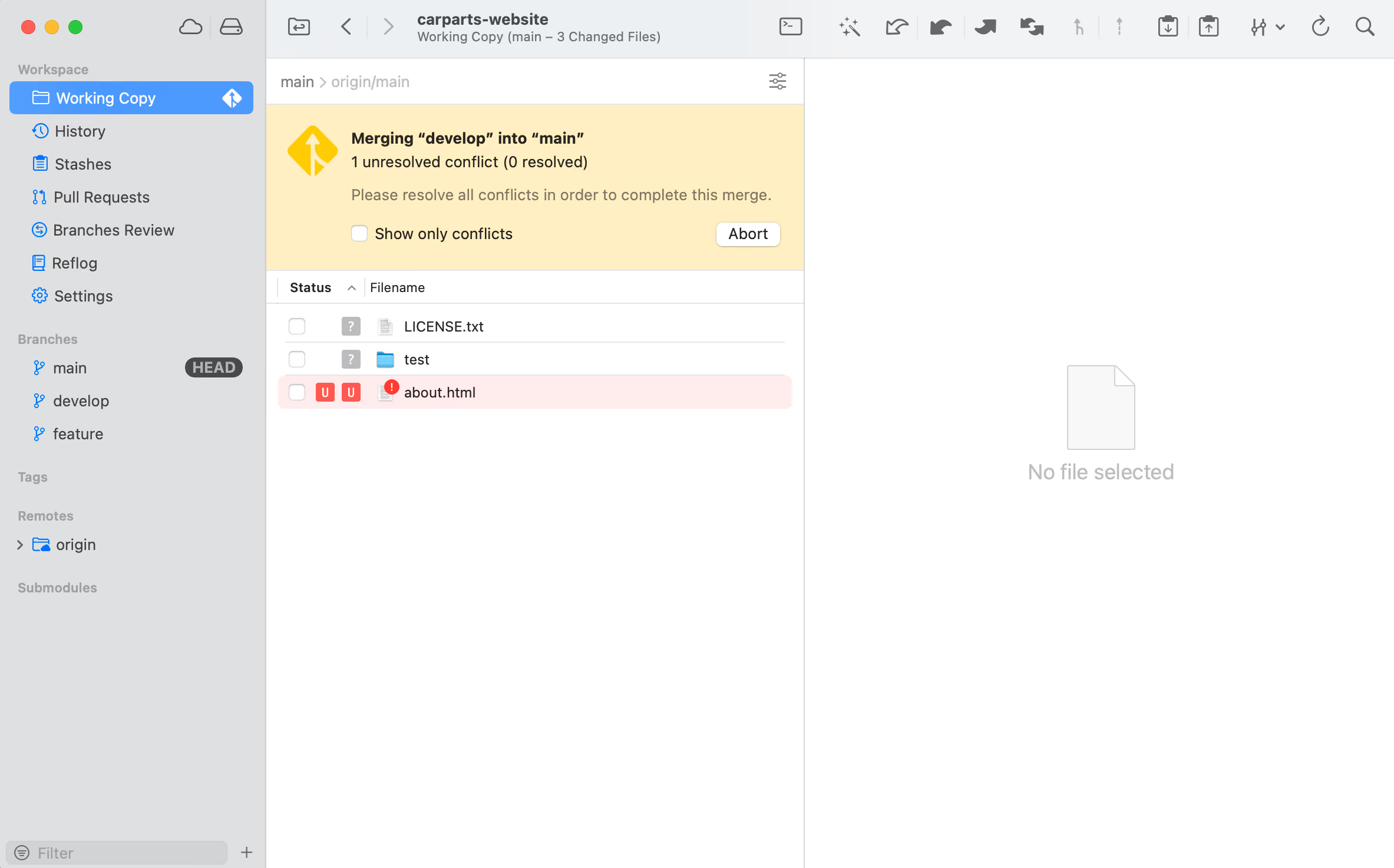
Step 2: Resolving a Conflicted File
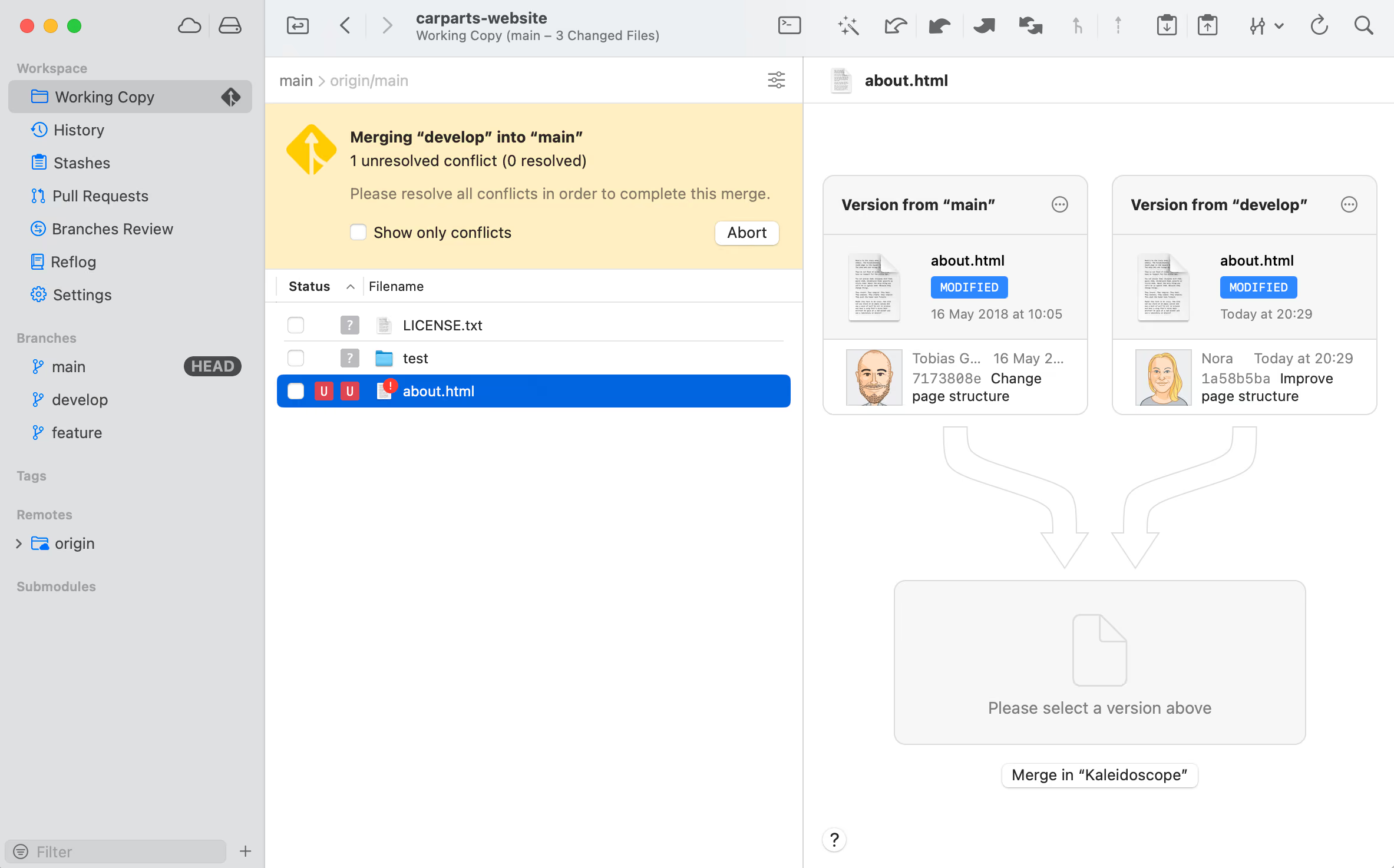
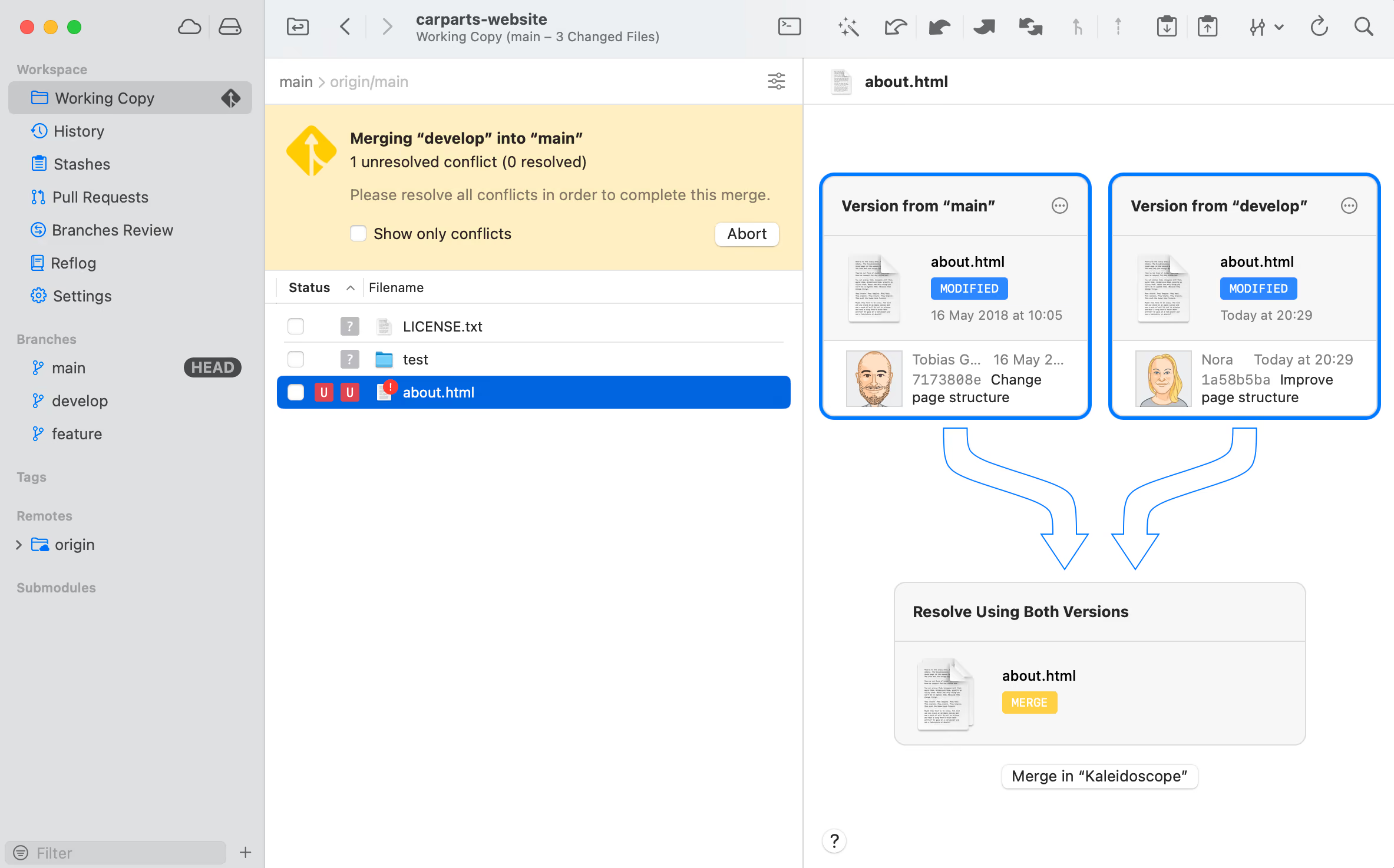
On the right side, Tower's Conflict Wizard helps you understand what happened.
Remind yourself that a conflict happens when a file was modified in two conflicting ways. These are represented by the boxes on the top - labeled "Version from <branch1>" and "Version from <branch2>".
The box on the bottom represents the resolved version of the file. You have two different options to create this...
Step 3: Option (A): Using one of the versions
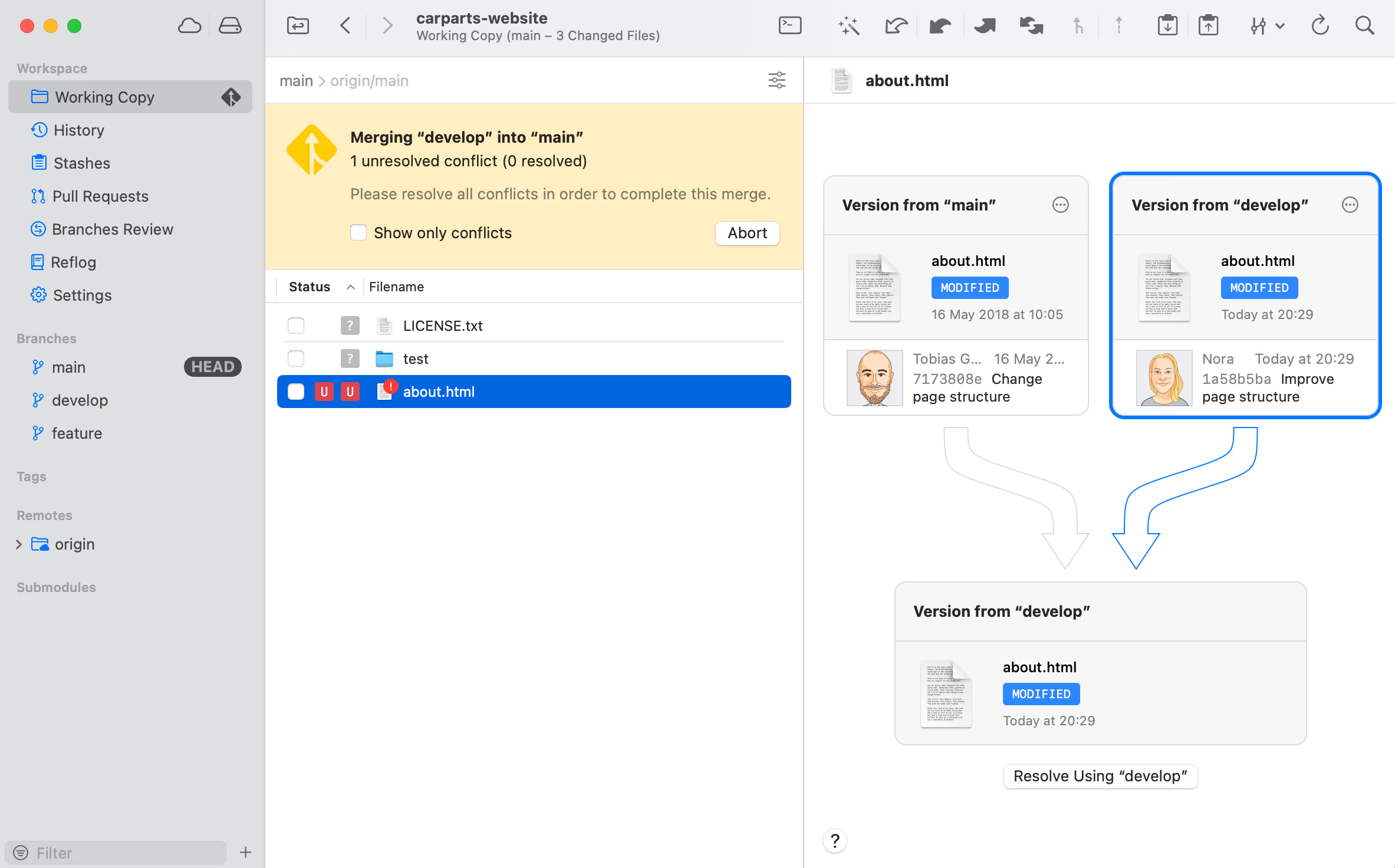
You can simply declare one of the two versions to be correct. Thereby, the changes in the other version will be ignored.
To do so, simply click the file (or the arrow) you consider correct and confirm your choice by clicking the button.
Continue with the next conflicted file...
Step 4: Option (B): Combining Both Files
In many cases, the "correct" solution will be a combination of both versions: some of your modifications will be correct, just as well as some of your colleague's will be. In this case you'll best solve the conflict using a merge tool.
In Tower, either select both versions in the Conflict Wizard (or none) and click the button on the bottom.
Your configured merge tool will then open. Please save your resolution and quit the tool to return to Tower. Continue with the next conflicted file...
NOTE: In Tower's settings dialog, on the "Git Config" tab, you can configure which merge tool to use. Be sure that the tool you're using is capable of dealing with merges. Not every diff tool supports merging!
Step 5: Commit Your Resolution
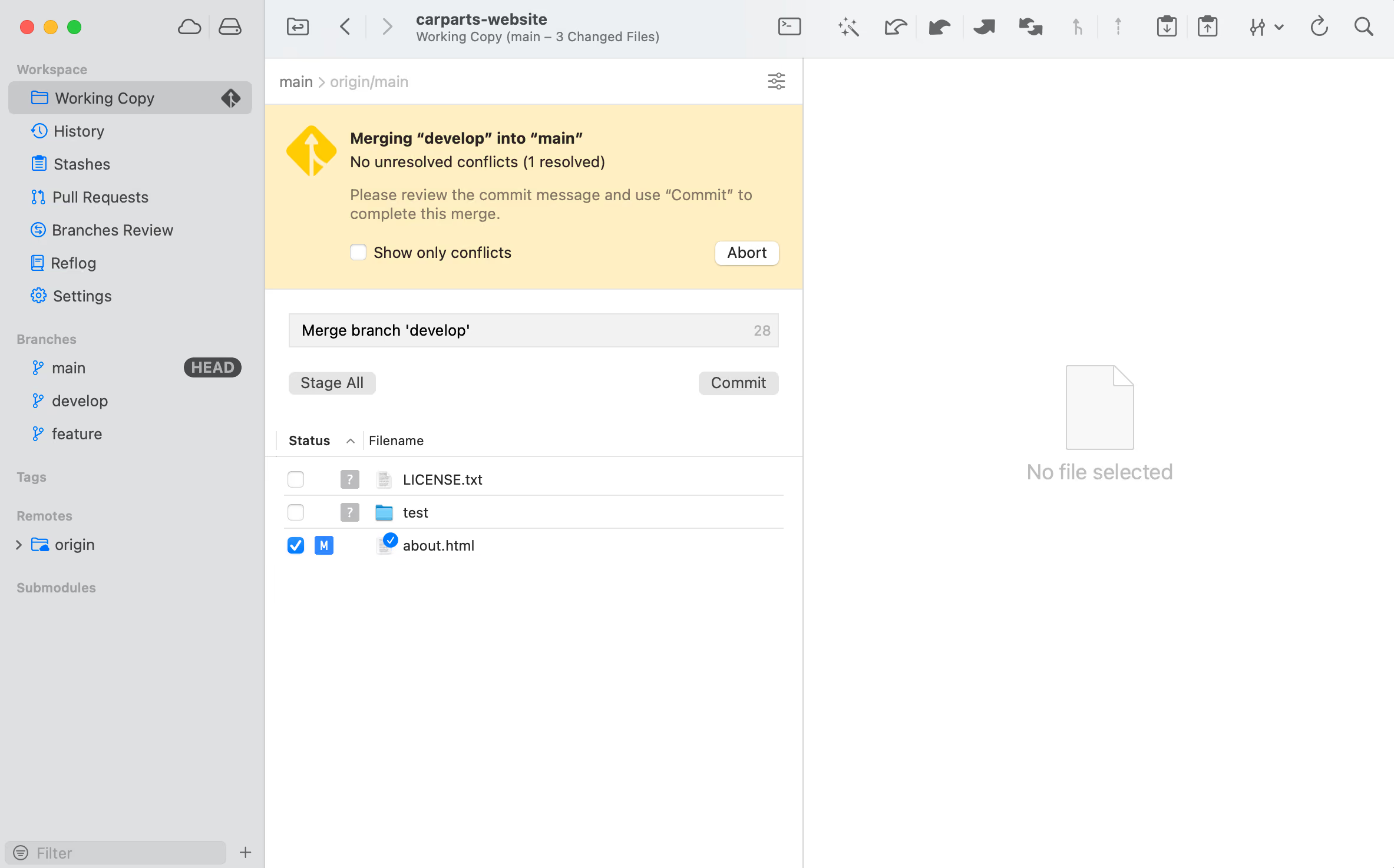
After having solved all conflicts you must commit your resolution. A suitable merge commit message is automatically prefilled for you.
Resolving Multiple Files at Once
If you want to resolve multiple files at once (or simply don't want to use the visual Conflict Wizard), you can also resolve via the contextual menu. To do so, select the files in the list, right-click and choose one of the options from the submenu.